x
Help/Info
Toolbar
 Paint Bucket: when selected, click an area in the image to fill it (adds the filled area to the total area calculation). You may also click + drag to fill areas as your cursor
moves into them. If you are trying to find the area of a section that has a lot of intersecting lines, the outline tool is probably a better option, in that case, as the intersecting lines will result in some area loss in the calculation since
only the areas that are filled in will be added to the calculation.
Paint Bucket: when selected, click an area in the image to fill it (adds the filled area to the total area calculation). You may also click + drag to fill areas as your cursor
moves into them. If you are trying to find the area of a section that has a lot of intersecting lines, the outline tool is probably a better option, in that case, as the intersecting lines will result in some area loss in the calculation since
only the areas that are filled in will be added to the calculation.
 Outline: when selected, click to draw points around an area in the image. To complete the area outline, hold the SHIFT key and press the left-click on your mouse. The area will
be filled and added to the total area calculation. Hold Alt+Shift and click to complete a cutout (hole) that subtracts from the total. Once you have started selecting points, press the ESCAPE key - or click the Outline toolbar icon a second time - to cancel the current selections.
Outline: when selected, click to draw points around an area in the image. To complete the area outline, hold the SHIFT key and press the left-click on your mouse. The area will
be filled and added to the total area calculation. Hold Alt+Shift and click to complete a cutout (hole) that subtracts from the total. Once you have started selecting points, press the ESCAPE key - or click the Outline toolbar icon a second time - to cancel the current selections.
Scale from drawing: In Step 3, click Set scale from drawing, click two points on a known length, then enter the real-world distance. That updates the scale fields automatically.
 Ruler: when selected, click two points to measure the distance between them. Hold SHIFT and click the ruler icon to clear all distance measurements on this page.
 Eraser: when selected, click a filled area to clear it (removes the filled area from the total area calculation). For areas filled with the paint bucket tool, you may also click +
drag to clear areas as your cursor moves into them. If you would like to clear the entire canvas, or restart, simply hold the SHIFT key and click on the eraser icon to clear all filled areas on the current page.
Eraser: when selected, click a filled area to clear it (removes the filled area from the total area calculation). For areas filled with the paint bucket tool, you may also click +
drag to clear areas as your cursor moves into them. If you would like to clear the entire canvas, or restart, simply hold the SHIFT key and click on the eraser icon to clear all filled areas on the current page.
 Zoom In: zooms in by 10%
 Zoom Out: zooms out by 10%
Calibration
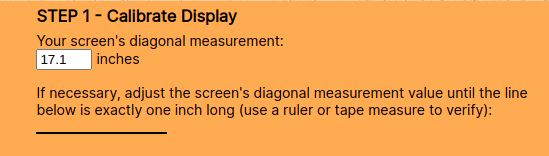
Display size: In Step 1, select your laptop or monitor diagonal from the list. The black line should be about one inch long. If it is not (external monitors and non-100% OS scaling are common cases), choose Custom / measure with ruler and adjust the diagonal until the line matches a real inch.
Other Controls
Undo / Redo: Ctrl+Z (or Cmd+Z on Mac) undoes the last fill, outline, or ruler measurement on the current page. Ctrl+Shift+Z or Ctrl+Y (Cmd+Shift+Z / Cmd+Y on Mac) redoes.
Export: Use the toolbar PNG button to download the current page with fills, outlines, and ruler marks. Rename items in the Schedule panel if you want clearer labels on-screen.
Panning/Scrolling: Right click and drag to pan/scroll. You may also use default scrolling actions (ie. vertical scroll: scroll wheel up/down; horizontal scroll: shift + scroll wheel up/down)
Zooming: ctrl + scroll to zoom in/out. You may also use the zoom in/out toolbar buttons. Hold SHIFT and click zoom in or out to return to 100%.
Issues?
If something isn't working quite right, or you'd like to suggest improvements, send an email to jotham@easyareacalculator.com

 1/1
1/1